
Getting started.
To follow this tutorial you'll need to download and install the following programs:
- NifSkope
- Python 2.6.6, Blender 2.49b, PyFFI 2.1.11, Blender Nif Scripts 2.5.9 (all links are on the same page)
The main part.
In this tutorial I'll be using file 'meshes\morro\i\InUVUSUintUcornerU01.nif' as an example. It is part of interior tileset for velothi architecture.
1. Upon lauching Blender you'll see the following:
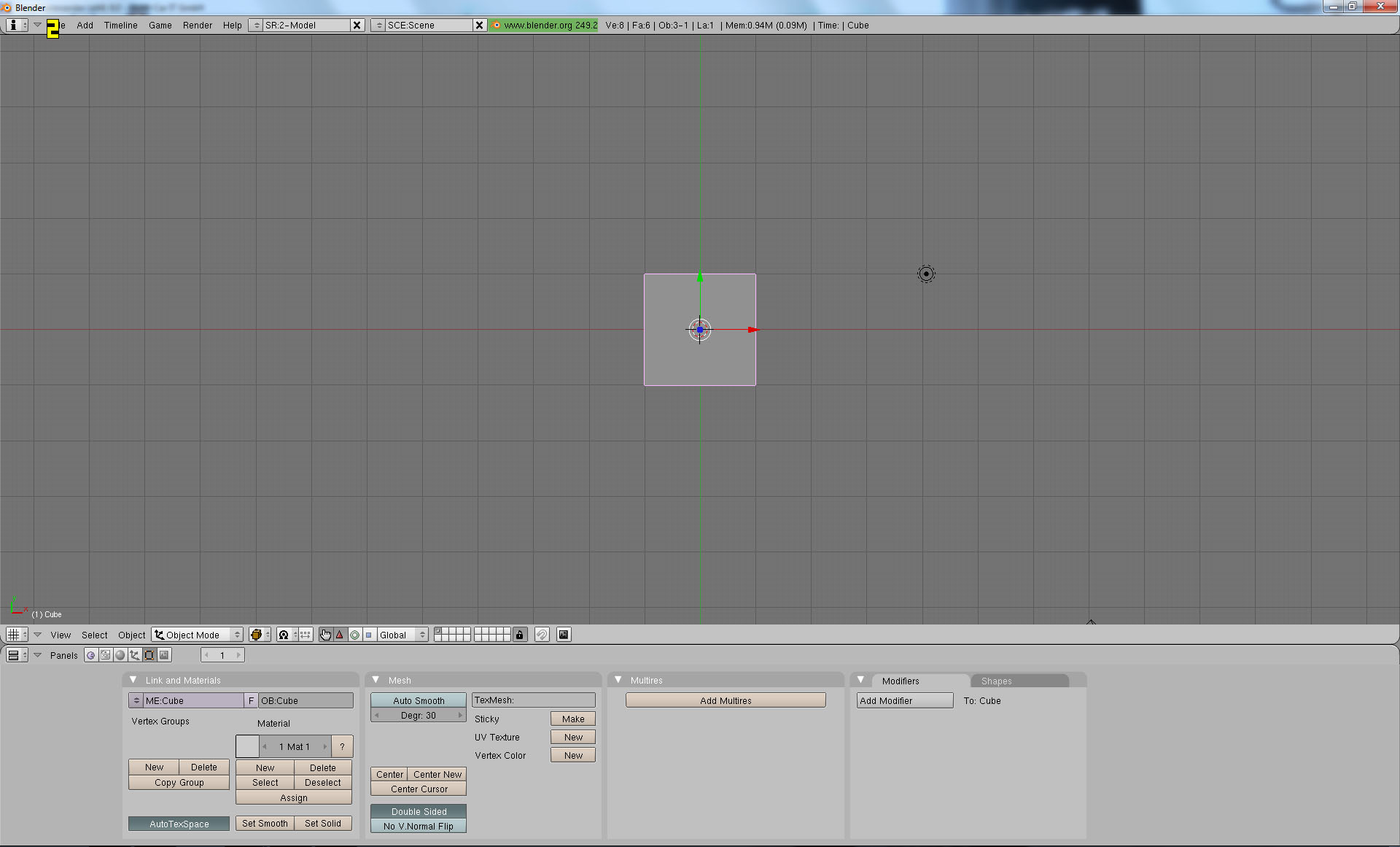
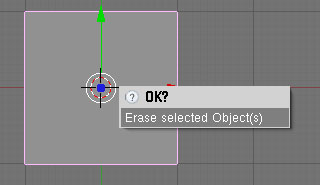
2. Square in the middle is default cube shape, which needs to be deleted. Hit X to delete and confirm with Left-Click:
3. Now that we got this out of the way, Select File->Import->NetImmerse\GameBryo

Navigate to the folder where our nif file is located, select it and click Import NIF. Use the following import settings:

4. Once our file is imported, observe it in 3D view:
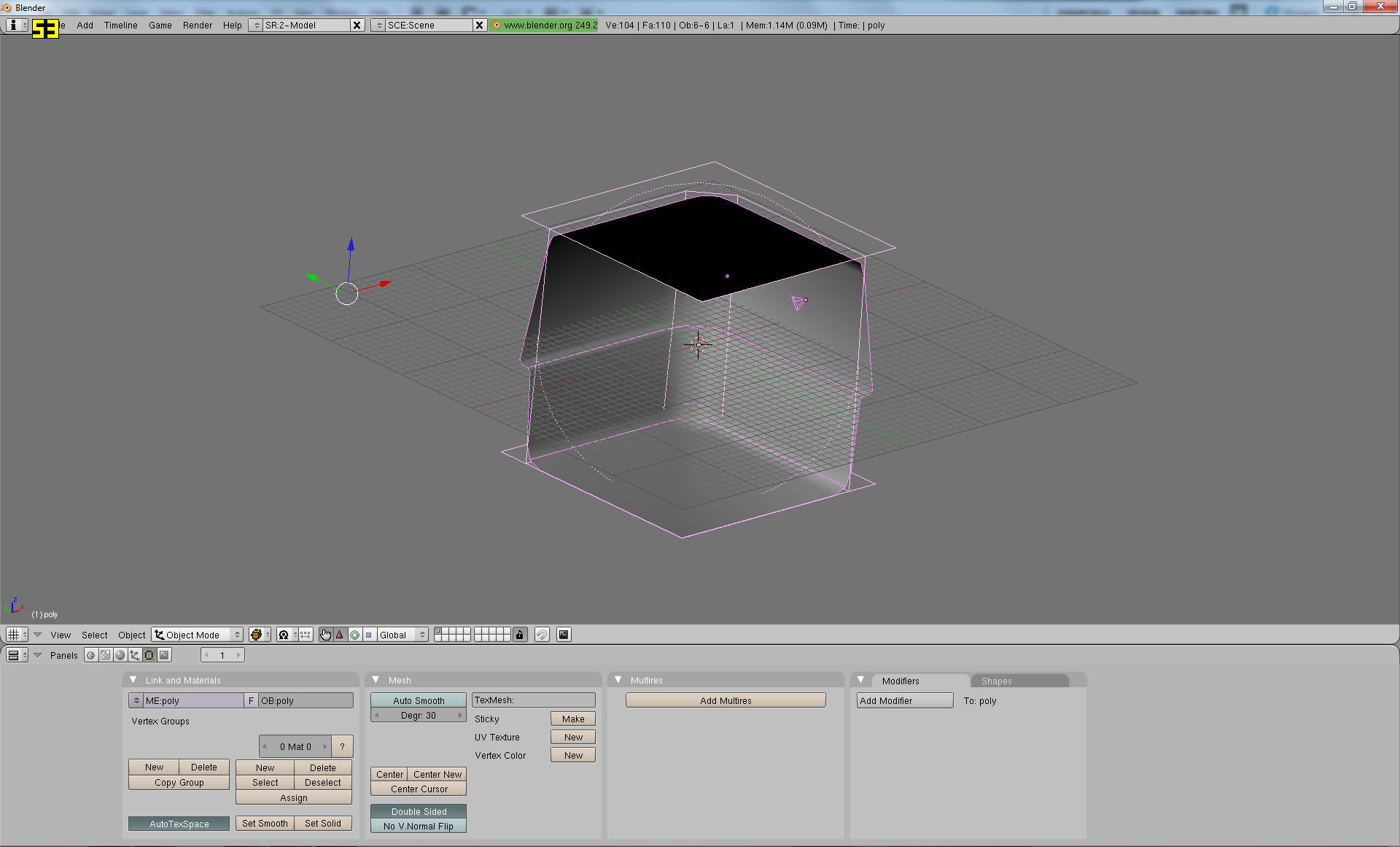
Basic controls are the following:
Mouse Wheel Up\Down - Zoom In\Out
Hold Middle Mouse Button - rotate camera around the model
Right-Click - select object
Tab - swith between Object Mode and Edit Mode
We are interested in collision part of the model - it is displayed as transparent 3D grid, as opposed to the rest of the model, displayed in grey. Select it:
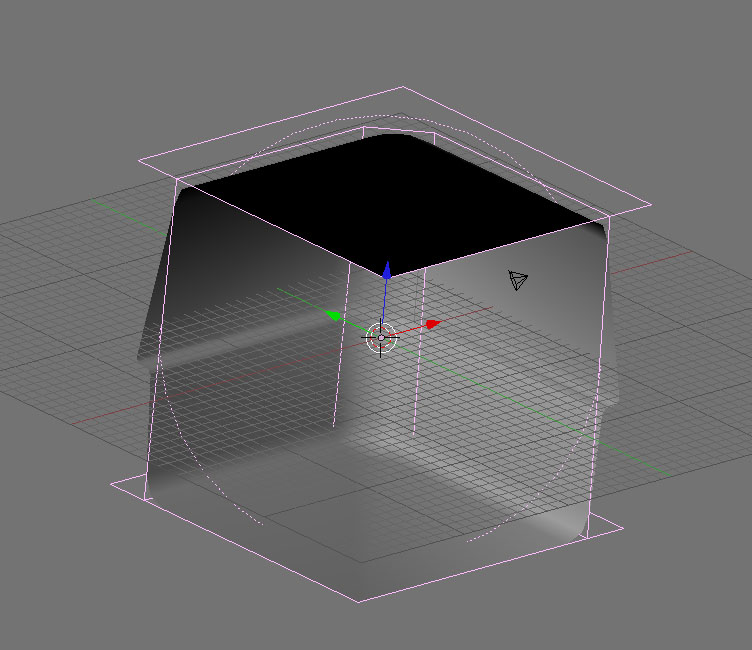
Then press Ctrl+I to invert your selection and H to hide everything, except the collision shape:
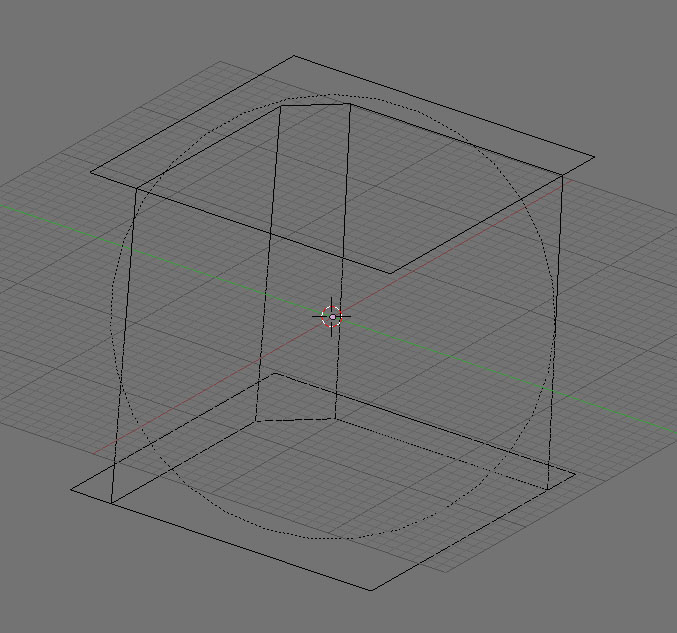
5. Now it's time to fix up our collision. This is the most basic tutorial, so we won't change its shape at all.
Select our collision object and go to Object panel at the bottom:
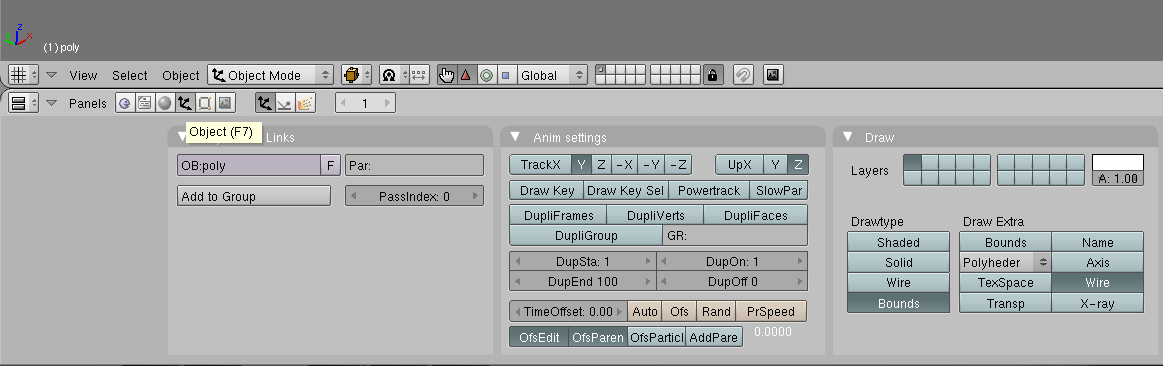
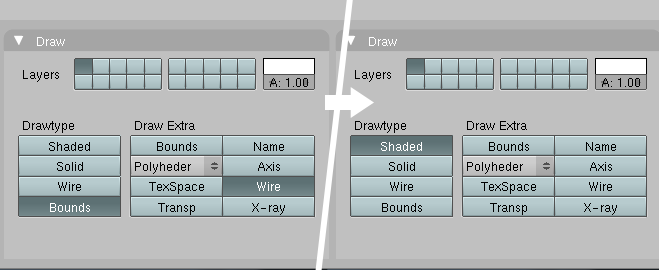
In the Draw section change Drawtype from Bounds to Shaded and remove the Wire option in 'Draw extra':
At this point our mesh should look something like this:
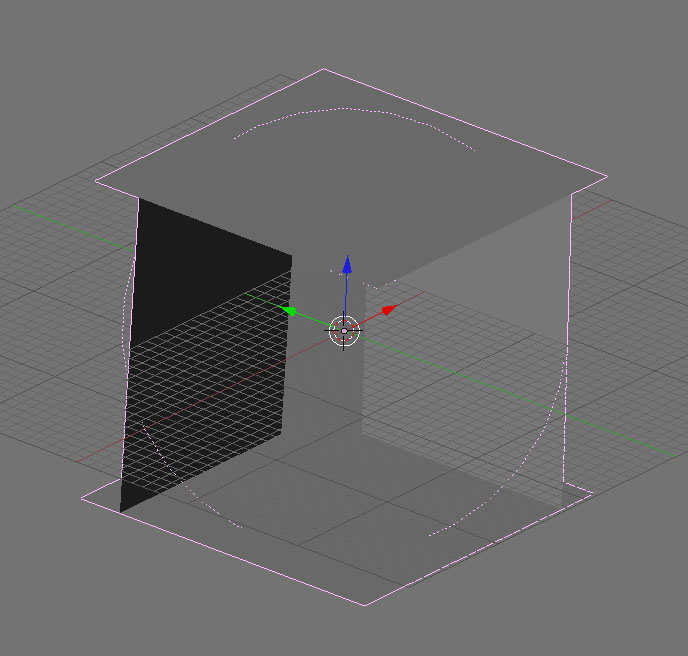
Now go into Editing panel (F9), click on 'Set Smooth' once and remove the 'Double Sided' option:
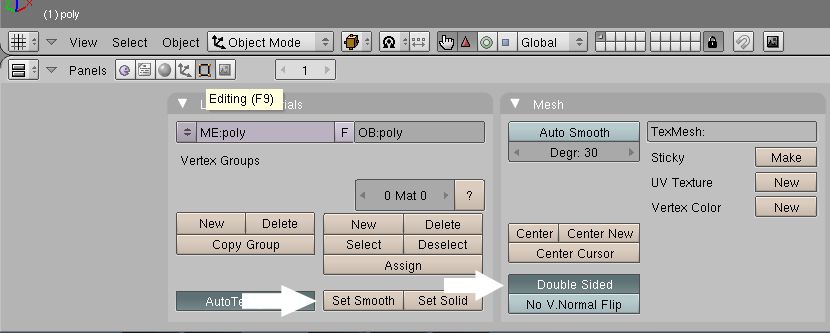
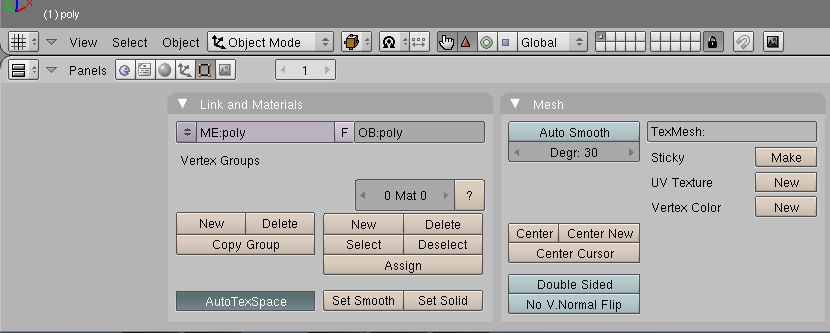
Mesh should now look something like this:
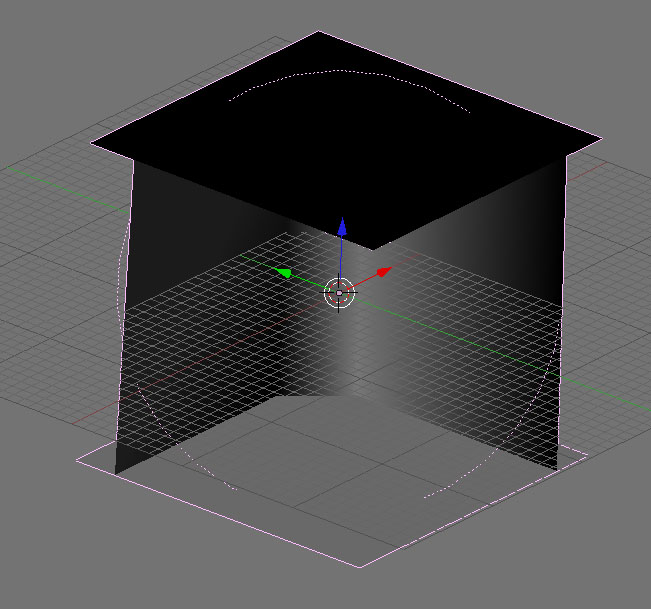
You'll notice that some parts of the mesh are of light grey color and others are dark, almost black. This shows the direction normals are currently faced. Our goal is to make all of them face in the direction we want.
Hit Tab to go into Edit Mode:
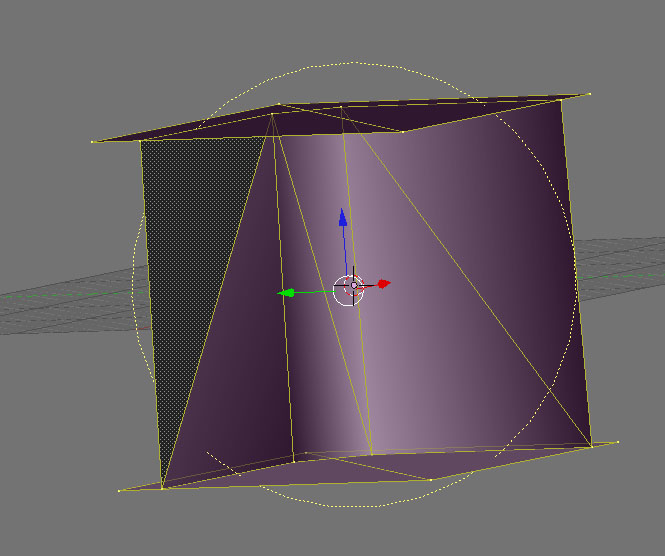
Here we'll have 2 hotkeys:
Ctrl+N - recalculate normals outside
Ctrl+Shift+N - recalculate normals inside
Which of them to use depends on the model in question. Essentially, normals should be faced in the same direction as collision, so in our example everything inside should be light grey and everything outside - dark.
If we were working with, for example, exterior building or furniture this would've been the opposite.
So, press Ctrl+Shift+N and confirm:
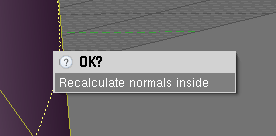
Voila:
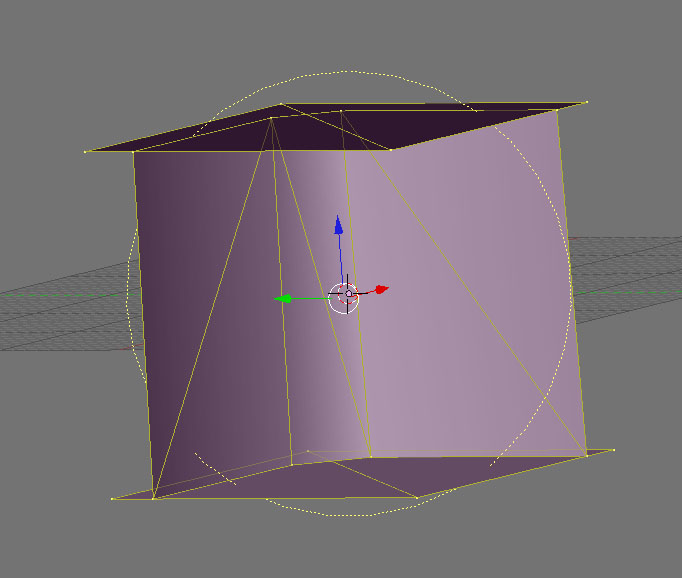
Sometimes you won't get the desired result having all verticles selected at once. In this case you'll need to recalculate normals for parts of the mesh separately. The quick way to select part of the mesh is to select 1 verticle and then press and hold Ctrl + Num+
Once all normals face in correct direction, exit Edit Mode by pressing Tab again.
6. Not that we've fixed the collision, it's time to go back and reverse some of our previous steps.
Go to Object panel (F7) again, set Drawtype back to 'Bounds' and select 'Wire' in 'Draw extra'
Our model should again look like this:
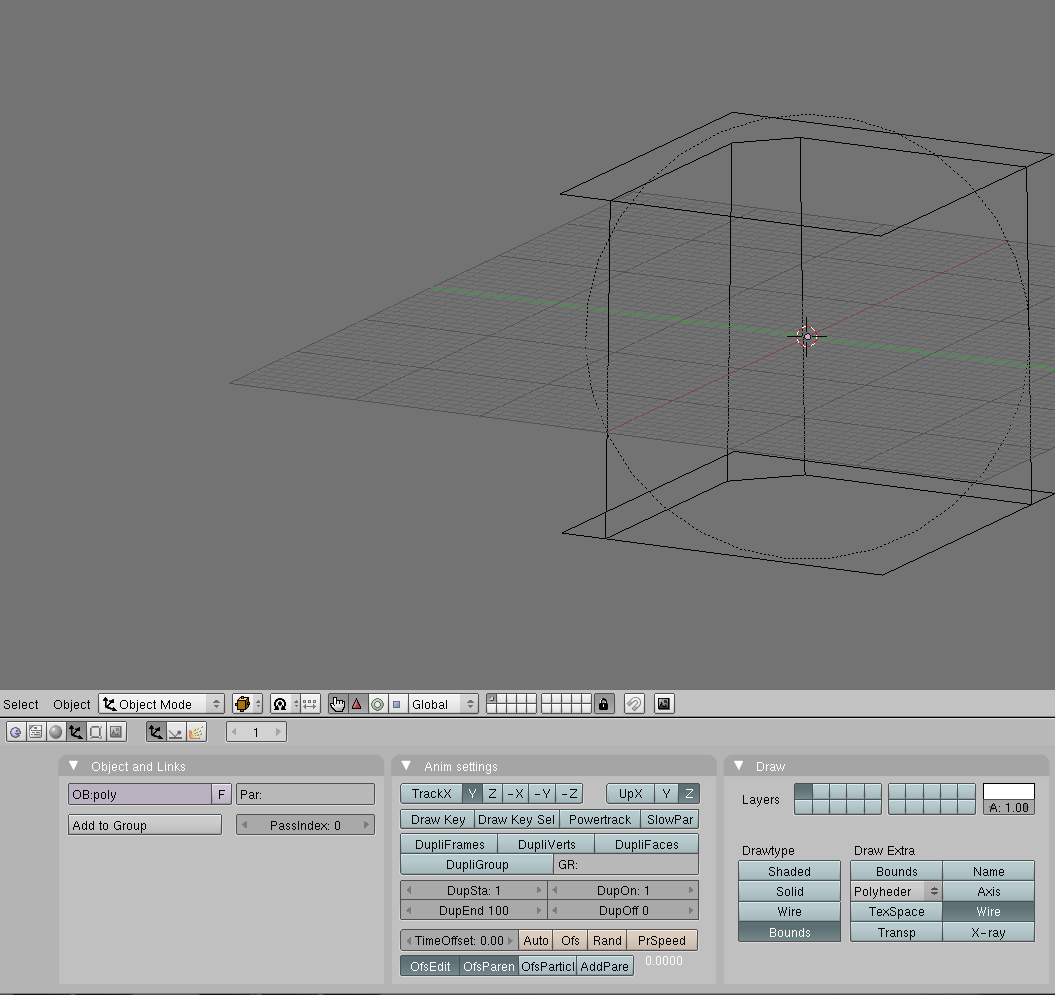
Now Press Alt+H to show our previously hidden parts of the mesh.
7. Press A (twice) to select everything and click File->Export->NetImmerse\Gamebryo
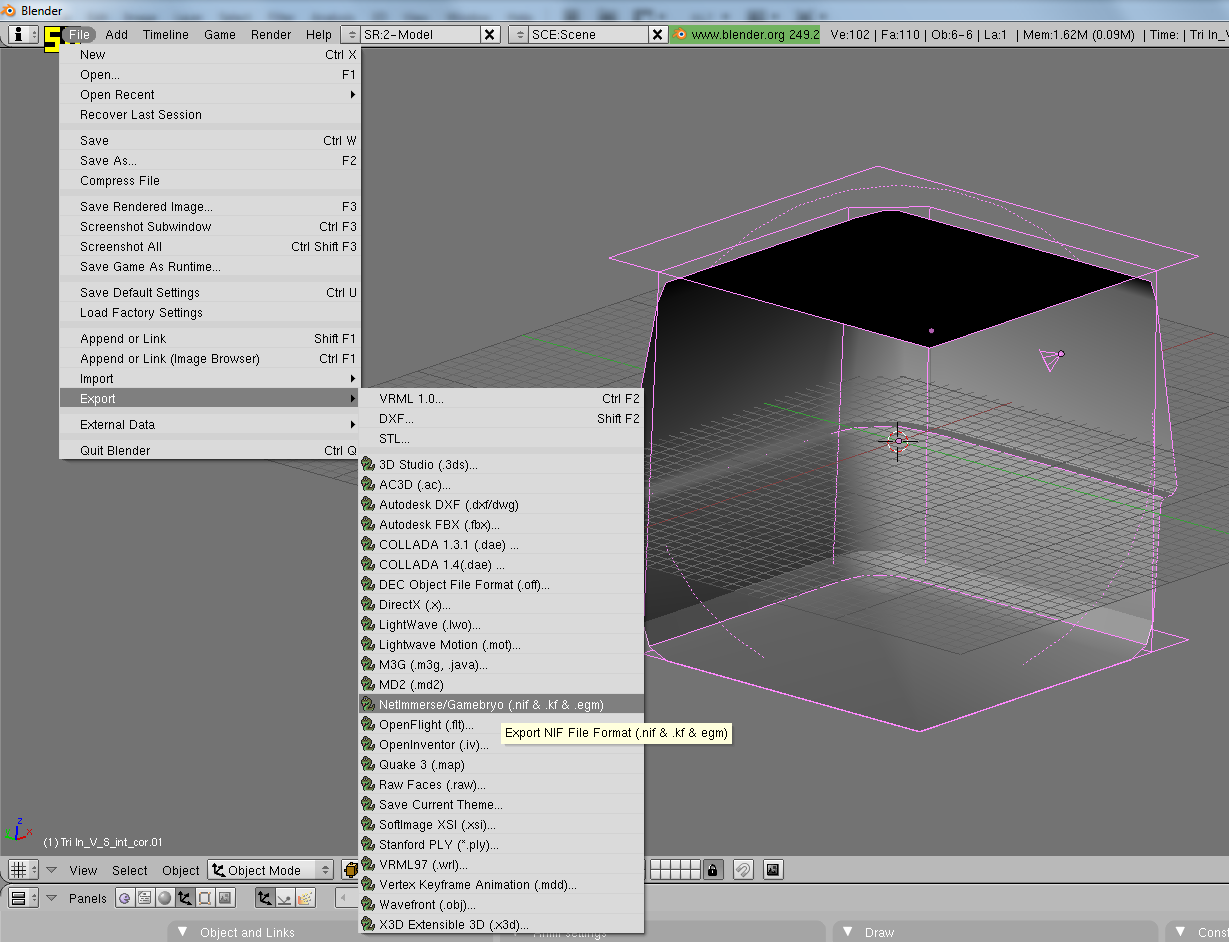
Select folder, name your model and click 'Export Nif'. Use the following export settings:

In this case we are using 'Stone' material, but you might need to use a different one.
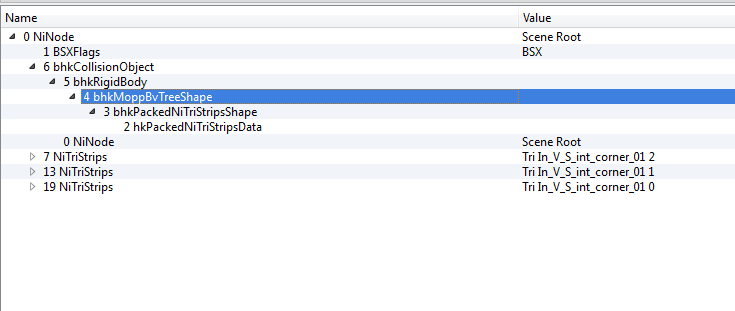
Now you can open the exported model in NifSkope. If you did everything right, you'll see something like this:
![[External image]](http://tesrenewal.com/sites/all/modules/ckeditor/ckeditor/plugins/smiley/images/embaressed_smile.gif)
Ok i've tried with this file
Ok i've tried with this file : C:\PROGRA~2\Steam\SteamApps\common\Oblivion\Data\meshes\morro\i\inUarU10.nif
And did this (attached). Is this correct?
This isn't totally clear for me :
Sometimes you won't get the desired result having all verticles selected at once. In this case you'll need to recalculate normals for parts of the mesh separately. The quick way to select part of the mesh is to select 1 verticle and then press and hold Ctrl + Num+
Is it normal that, there're only a few .nif in the Oblivion\Data\meshes\morro\i\ ? (And i don't have the file you took as an exemple ?)