
.
THIS THREAD IS OUTDATED PLEASE GO HERE:
http://morroblivion.com/forums/skywind/skywind-development/3022
.
.
.
--------------------------------------------------------------------------------------------------------
Current Release: V002,
http://www.mediafire.com/?s5dfpcsd8t4andd
Voice over main page
This page is for managing a voice overs mod and who is commiting to the dialoge of specific characters. Please click on the link to see the character. Things to keep in mind when deciding which characters to do is: Age, Sex, Wealth (upper class, lower class), and Race. These attributes usually help determine how someone sounds in Elder Scrolls. Please send me a message to let us know who you would like to do.
Recording Tips and Tutorials:
TES Alliance Workshops - Guides you through the process of creating voice-overs for Oblivion, using Audacity, a free audio editing program
- TES Alliance: Workshop 1 - Introduction to Audacity
- TES Alliance: Workshop 2 - Working with Audacity
- TES Alliance: Workshop 3 - Creating .LIP Files
- TES Alliance: Workshop 4 - Mic's, Signal-to-Noise, Recording, and more
- TES Alliance: Workshop 5 - Acting Guide
- Video on how to produce large amounts of .LIP files with CS v1.0
When recording please use a pop filter or at least ladies nylon (put the mic into the nylon) this will help get rid of bad "s" and "p" sounds that plague voice overs. Speak clearly. Use a heavy blanket to put behind the mic. This captures reflections of the sound from coming in through the back fo the mic. This will allow a cleaner voice.
Please use compressors on your voice. You want the compressor settings to be: Attack (fastest possible) Release (slow) Ratio (high 10:1 to even 20:1) And the Input (threshold) and Output (gain) You want to set it to a setting that doesn't make the volume shoot up and then go really quiet.
- Video tutorial on compressors
- Video tutorial on voice overs (but he doesn't do an example)
- Video tutorial on voice overs and compression
- Video tutorial about doing hip hop vocals, but it has decent info on what you can do with voice.
-
Audacity video tutorial
This tutorial seems good, the guy know sound manipulation and explains things simple. I am digging this guys stuff. This tutorial gives the basics, but this guy has others that go futher on sound manipulation. You can actually sound like a completley different person, after you have experience, but for this project we need it to "clean" the voice file and just keep the voice tones together.
Software:
- Audacity, a free audio editing program
- Switch Sound File Converter, to convert WAV to MP3
- EggTranslator v1.5.0.9 (Will export all individual NPC dialogue to the HD, around 961 files.) Try to use v1.5.0.9, that one works for me, v1.5.1.3 is bugged
- Construction Set (both versions, the Construction Set Extender, and Oblivion Script Extender
Recording interfaces:
This is a recording interface at guitar center for like $50, that are USB, come with a program, and are more professional than pluging a mic into your sound card. Instantly less noise. Sound card noise is the #1 thing I've heard so far. It is also the hardest to remove. If you can't afford an interface, don't worry. Getting in character and getting it recorded is more important then waiting. This is an alternative, better interface but it is $85.
What I use is going on ebay for $150, but I think it will only run on XP or mac. I like what I got - it is a PCI card, so it is right on the motherboard, so it has great latency, I can record on the lowest buffer size and hear my voice with no delay. It also has some great preamps, It has the high end focusrite preamps. This used to sell for $1500 in the 90's
MP3's:
Please keep the original wave format and mp3s in Oblivion are sampled at 44.1 Hz frequency, 64 Kbps bitrate and Mono channels. See the TES Alliance Workshops above for more information
Voice Talent:
Right now I wouldn't worry about "voice talent" If it really doesn't work, it doesn't work and I hope you understand. Personally I think everyone can do a character. And if you do one character, and it doesn't fit, then the solution is that your voice is built for a different character. Sound is relative like that. What doesn't sound good in one situation sounds brilliant in another.
File Naming:
- Go into the CS and find the person's dialogue and the corresponding audio file. Look in dialogue filter under Character.
- In the filter box, look for 0(then the persons name) example. 0caiusScosades
- In the editorid box, click on the top one.
- To the right of that box, you see another box with the headers: Quest, Info, NPC's,... etc..
- Under NPC's should be your characters name. If you don't see your characters name (the filters not perfect). Then you just click on the second line in the editorid box. Keep clicking to the one below untill you find your NPC's name under the NPC header in the box to the right.
- Next click the line with your NPC's name.
- Then look down at the box below the one you are woking on. This the the responce text. This is where the dialogue is. Double click a line of dialogue.
- In Responce Text, is the complete text of the dialogue.
- In Voice Filename, that is the name your mp3 will have to be to sync up with the game engine. You can not change this you have to name your voice file of that specific text to that specific filename.
- Record it as an MP3 and a WAV and save as the corresponding file name.
- Under the Voice Filename you'll see a header call Path. This is the path that the file must be in. No execptions. You can not change.
We do need to optimize this process. I am recording the files and will double back over after the mp3 conversion and place them in the right path. I am trying it out for Cosades this way, to see what kind of "product" this way produces. I did it a different way the first time and honestly I like what I am producing in this process.
For MP3 comversions I am using Switch Sound File Converter. I am doing this because it will "normailize" your audio file. Which means it will be at the right volume for the game (in short).
Ice's Noob Tutorial for Recording:
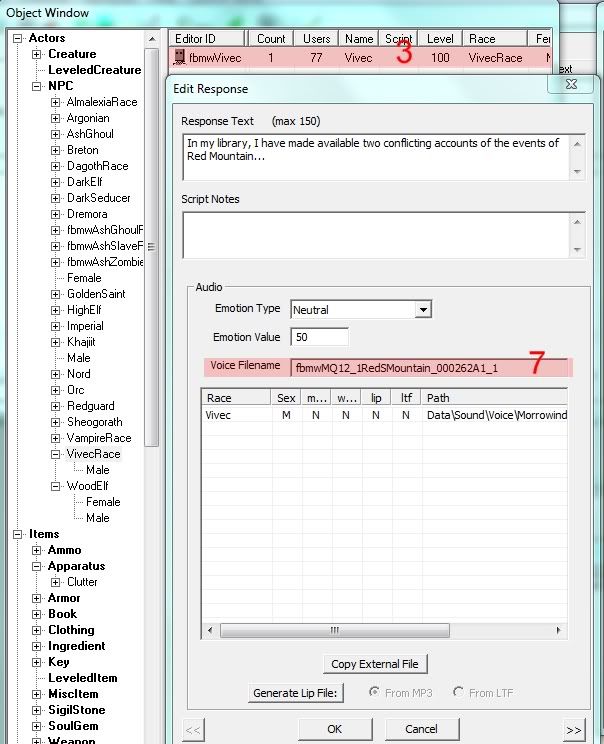
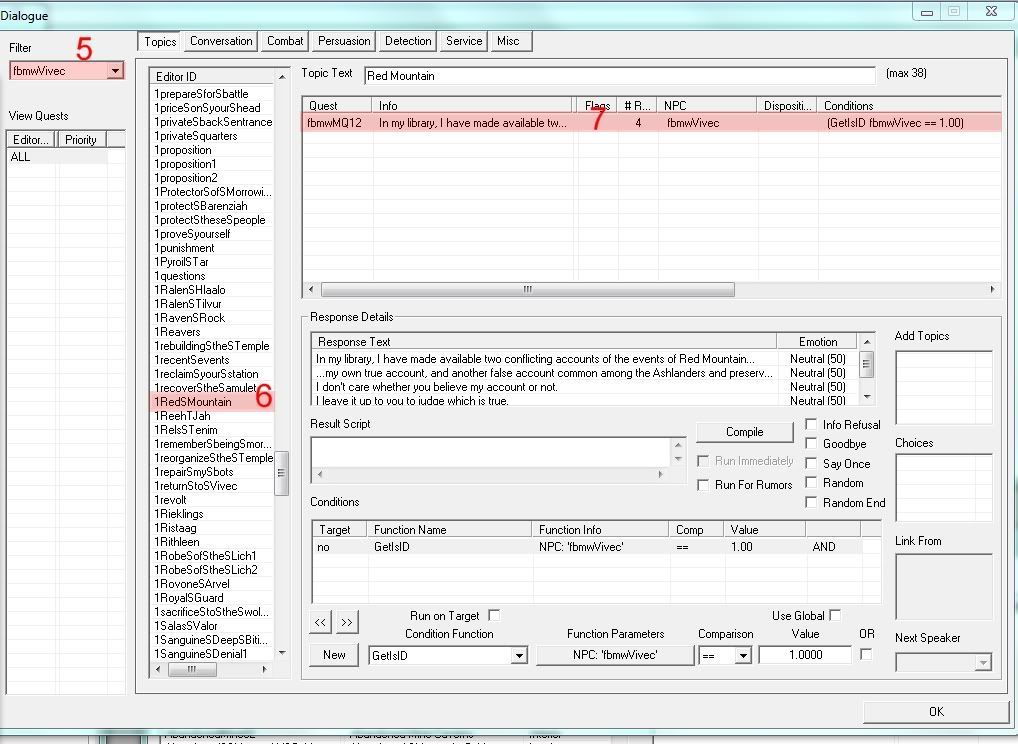
In the pictures I labeled parts of the CS based on what step you should click/look at that part of the CS. So when there's a "3" in the picture, that means look at it as you read step 3.
1) Open the Construction Kit
2) Load Oblivion.esm and Morrowind_ob.esm. You don't need to set an active file, and you don't need to save.
3) In the object window double click Actors>NPC>"You're character". For the tutorial, we'll use Vivec, so double click Actors>NPC>VivecRace>Male>fbmwVivec
4) Click the "Dialogue" button. The CK will load for a bit.
5) A "Dialogue" window will pop up. Notice that in the top left corner it says "Filter." Below "Filter" should be the name of the NPC you're voicing.
6) Notice the list of Topics Next to the filter. They're sorted by editor ID. Click on an editor ID to see the topic info. Look under the "NPC" Column for your selected NPC. If the NPC column is blank or has an NPC we're not voicing, click the next Topic ID. In our example I found "1RedSMountain" and that topic had "fbmwVivec" in the NPC Column. That means that Vivec speaks this topic, and so we need to record dialogue for it.
7) Double click on the topic info (see picture). That brings up the "Edit Response" window. This window shows us the response text (what Vivec says), his emotion, and the voice filename/filepath (highlighted). Sidenote: If you wish to include an esp file along with your sound files, then consider editing the emotion type and value while you're here.
8) Use Audacity to record you as you read the response text. If you need to know more about Audacity / recording, look into one of Sot's tutorial links, or browse the thread. Basically you need to record a line, clean it up (use a compressor, use noise removal, etc) and save it as a wav.
9) When the file is ready to go, convert it to mp3. Please keep the original wave format; mp3s in Oblivion are sampled at 44.1 Hz frequency, 64 Kbps bitrate and Mono channels. See the TES Alliance Workshops above for more information. (This is easiest to do with Switch sound converter. Find the link above).
10) In the "Edit Response" window there is a box called "Voice Filename" (#7). Below the voice filename is a box that contains the NPC and a column called "Path." For Oblivion to play the file, the mp3 must be in the right format (like we said in #9), and it must have the EXACT filename as the text in the "Voice Filename" box. This is easy to do because you can double click in the box to select the filename. Copy the value (Ctrl + C) and then right click your voice file>rename and paste the new filename in (Ctrl + V). Finally, place you're properly formatted and titled mp3 into the correct filepath, creating folder's where necessary.
11) Test your voice files in game! If they work and you like them, create a zip that contains your files placed in the right folder path. (Basically, somewhere on your hard drive start creating new folders: create a new folder and call it "Data," inside that another new folder "Sound," etc etc. Then post a link to them on this thread!
12) Thank you!
- Sellus Gravius Completed: iceburg333
- Bacola Closcius Completed: iceburg333
- Caius Cosades Completed: Sot
- Hasphat Antabolis Completed: iceburg333
- Sharn gra-Muzgob
- Huleeya
- Addhiranirr
- Duvianus Platorius assigned: leftpassenger
- Mehra Milo
- Hassour Zainsubani assigned: robertneville777
- Codus Callonus completed: iceburg333
- Zabamund
- Sul-Matuul
- Nibani Maesa
- Raesa Pullia
- Dagoth Gares assigned: Darth South
- Divayth Fyr assigned: iceburg333
- Yagrum Bagarn
- Mehra Milo
- Gilvas Barelo assigned: iceburg333
- Vevrana Aryon
- Sul-Matuul
- Athyn Sarethi
- Varvur
- Miner Arobar
- Garisa Llethri
- Hlaren Ramoran
- Brara Morvayn
- Bolvyn Venim
- Crassius Curio assigned: leftpassenger
- Yngling Half-Troll Completed: iceburg333
- Dram Bero
- Orvas Dren
- Velanda Omani
- Nevena Ules
- Master Aryon
- Mistress Dratha
- Mistress Therana
- Master Neloth Completed: iceburg333
- Master Baladas
- Gothren
- Sul-Matuul
- Sinnammu Mirpal
- Sonummu Zabamat
- Kaushad
- Savile Imayn
- Manirai
- Ulath-Pal
- Ahaz
- Ranabi
- Ashu-Ahhe
- Han-Ammu
- Tholer Saryoni
- Danso Indules
- Vivec Assigned: soucy666
- Altmer
- Argonian Assigned: Solin
- Bosmer Assigned: iceburg333
- Breton
- Dunmer
- Imperial Assigned: Sot
- Khajiit
- Nord
- Orc
- Redguard
Misc:
- Fargoth Completed Kefka
I wouldn't mind helping out.
I wouldn't mind helping out. Provided my voice would suit the charachters?